Create your context directory
Before you build agents that can actually help you, they need to know something about you — your work, your people, your projects. A context directory is just a folder on your desktop where all that lives, in plain markdown files, ready for any AI tool to read.
Open Claude Code and have it build the folder for you
You're not going to create this by hand. You're going to open Claude Code and ask it to make the folders for you. This is also a good first taste of letting a coding agent act on your own machine.
Open the Claude app and switch to Code
Download the Claude desktop app from claude.ai/download if you don't have it yet. There's just one Claude app — Chat, Cowork, and Code all live inside it.
When you open it, look at the top left, just above where it says New session. There's a switcher there. Pick Code — that's the one we'll use today.
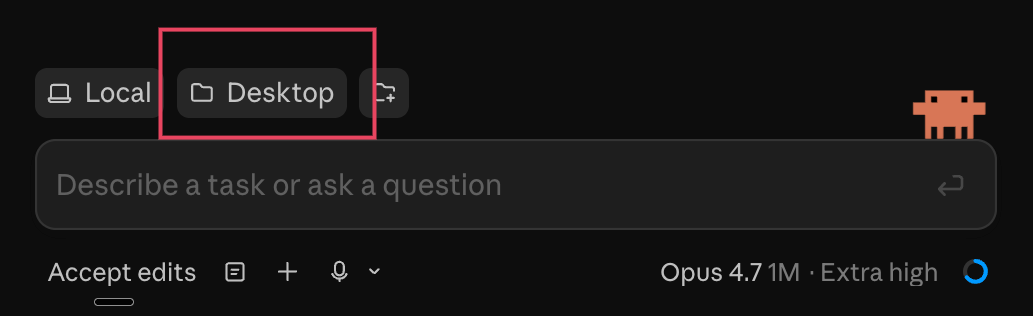
Once you're in Code, you'll see a folder switcher at the top. Click Desktop so Claude Code is pointed at your desktop — that's where it'll create your context folder.
Switch to Bypass permissionsOptional
By default, Claude Code pauses and asks for approval before it creates or edits files. That's a safe default, but it gets chatty fast when you're asking it to set up a whole folder structure.
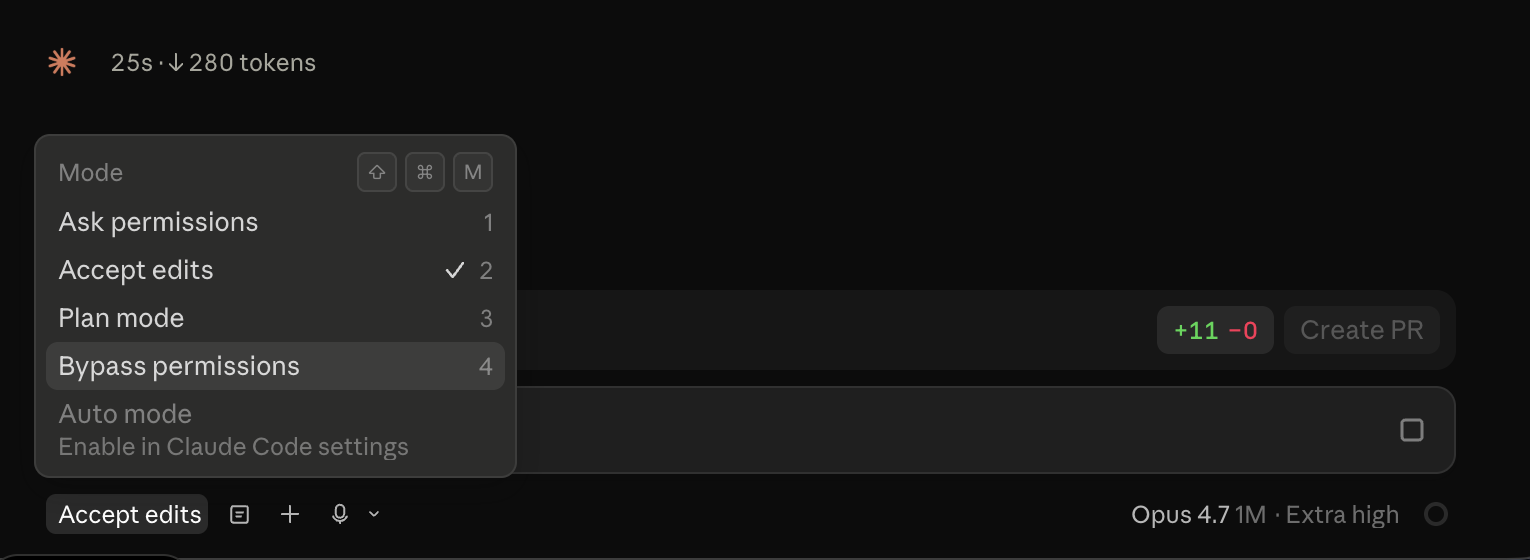
To let it run uninterrupted: press Shift + ⌘ + M (or click the mode indicator in the bottom-left) to open the Mode menu, then pick Bypass permissions.
Paste this prompt
Tell Claude Code exactly what to build. Copy and paste:
Claude Code will create the folder on your desktop, make all five subfolders, and drop a README in each one. Check your desktop — you should see a new context folder.
What goes in each folder
You don't need to fill these in all at once. The point of the structure is that when you learn something worth remembering — about a teammate, a project, your own goals for the quarter — you know where it goes.
- Me/ — Who you are in this job. Your role, what you're trying to get done this quarter, what you care about, what you're working on growing. When an AI drafts something "as you," this is what makes it sound like you and not a generic LinkedIn post.
- Team/ — One file per person you work with closely. Their role, how they communicate, what they're working on, things you've learned about how to work with them well. This turns "help me write a message to Sam" into something actually tailored.
- Projects/ — One folder per active project. Inside, keep whatever the project produces — drafts, notes, status, related docs. The folder name itself is the project; what's in it grows as the work does.
- Company Context/ — Strategy docs, org-wide goals, the annual plan, anything that sets the broader frame of your work. Paste it in or link to it.
- Admin/ — Your daily notes (a running log of what you worked on each day) and your skills (reusable prompts saved as files — you'll build these as you go). When you and Claude Code make a skill together, this is where it lives.
Give it a real job: track your reminders
Empty folders aren't very interesting. Let's give Claude Code something useful to do — keep a running list of everything on your plate, and update it automatically every time you mention a new task.
Create the reminders file
Type a few things that are on your plate right now — work or personal, whatever's rattling around in your head. Aim for three to five. Claude will sort them into categories when it writes the file.
One per line. Don't bother organizing — that's Claude's job.
Make it automatic going forward
Now teach Claude to keep the list updated without you asking. Paste this:
CLAUDE.md is a standing-instructions file Claude Code reads at the start of every session. Anything in there applies automatically — so from now on, when you say "I need to follow up with Sam" or "remind me to renew my passport," it lands in your reminders without you doing anything else.
Teach it to plan your day
Now that you have a reminders list, let's give Claude a job that uses it. You're going to teach it what to do when you say "plan my day" — read your calendar, read your reminders, ask what you want to prioritize, and build you a schedule.
Add the instructions
Paste this into Claude Code:
Try it
Claude can't read your calendar yet (we'll set that up later today). For now: take a screenshot of today's calendar, paste it into Claude Code, and send this prompt with it:
Walk through the flow — tell Claude what you want to prioritize, and confirm the schedule. Once you've landed on a schedule you're happy with, paste this so it writes the daily note (since it can't add events to your calendar yet):
Once you connect calendar access later, you can skip the screenshot and just say "plan my day."
Save your scheduling preferences
Once Claude has landed on a schedule you're happy with, you've just told it a bunch about how you like your day to flow. Capture it now so every future "plan my day" gets it right faster. In the same conversation, paste this:
Add a person you work with
Your Team folder is empty. Let's fix that — pick someone you work with often. Your manager is a good place to start, but it can be anyone whose name comes up a lot in your day.
Fill in the boxes. The prompt below updates as you type — yellow = empty, green = filled.
Bring it all together
You've set up the folders, captured what's on your plate, planned your day, and added a person to your team. Now let's see what all that context actually buys you.
Start a fresh Claude Code session
Open a new chat in Claude Code and make sure it's still pointed at your context folder. Starting fresh proves the system works on its own — it's just the files doing the work, not the conversation you've been having.
Ask it to draft an email about your day
Paste this:
Now make it personal
Same conversation. Paste this:
Compare the two versions. The first one knows about your day. The second one knows about your day and who you're writing to. That's what the context layers buy you — every file you add makes every future answer more specific.