Glossary
Plain-English definitions for the terms you'll hear over the two days. Skim now, or come back when something sounds unfamiliar.
The basics
What you type into an AI. The instructions plus context you give to get a response. A good prompt treats the AI like a smart new hire: tell it what you want, give it what it needs to know, and say what "good" looks like.
The background information you give the AI so it can actually help you. Relevant docs, examples, your role, constraints — anything a human would need to know to do the task well. More good context → better output.
A tool with an interface that helps people do a specific thing. Gmail is an app for managing email. Canva is an app for designing. What you build in Lovable on Day 1 will be an app.
A program that reads something (your email, your calendar), decides what to do, and takes action — on a loop, without you telling it each time. Different from an app: an app is a tool you use; an agent is the thing doing the job for you.
A written description of exactly what you want built: what it does, what it looks like, how it behaves in edge cases. You write the spec, the AI (or a human engineer) uses it to build. A good spec is boring — it leaves nothing ambiguous.
Day 1: building an app
The tool you'll use on Day 1. A website where you describe the app you want in plain English, and it writes the code, builds the app, and hosts it for you.
An early, rough version of an app — the point is to test the idea, not to ship something real users rely on. Prototypes usually skip the hard parts: no login system (auth), no stored data (database), no edge-case handling. That's not a bug — it keeps you focused on whether the idea works. Most of what you build on Day 1 will be prototypes.
Where an app stores information that needs to stick around between visits — user accounts, posts, orders, anything. Without a database, your app forgets everything the moment the page refreshes. Real apps have databases; prototypes usually don't.
The login system — who you are and whether you're allowed in. Any app with user accounts has auth behind it. Prototypes typically skip auth, which is why "log in with email" often isn't actually wired up in what you build on Day 1.
Taking what you've built and putting it on the internet so other people can actually use it. Before you deploy, your app only exists for you. After you deploy, anyone with the link can open it. When you click "Publish" in Lovable, that's deploying.
The address you type into a browser, like grrlsintheloop.ai. Your deployed Lovable app gets its own URL automatically — that's the link you share.
The unique, memorable part of a URL — like "grrlsintheloop.ai". You can buy a custom domain for a few dollars a year and point your Lovable app to it, so the URL looks the way you want instead of the auto-generated one.
Where your app lives on the internet. Apps need a computer running 24/7 somewhere to be reachable. Lovable takes care of hosting automatically — you don't have to think about it.
The internet's phone book. DNS translates a domain (like grrlsintheloop.ai) into the actual address of the computer hosting your site. When you buy a custom domain and "point it at" your Lovable app, what you're doing is editing DNS records so the name resolves to Lovable's server. Changes can take a few minutes to a few hours to propagate.
A live view of your app while you're still building, before you've deployed it publicly. You can click around and test things without anyone else seeing.
Make a small change, see how it looks, tweak, repeat. The loop you live in while building. Most of the work is iterating — the first version is never the final one.
Day 2: building an agent
The Claude app you download to your computer. It has three modes inside it: Chat (just talking to Claude), Co-work (Claude working alongside you on specific tasks), and Code (Claude Code, for building software). On Day 2 you'll spend most of your time in Code mode.
One of the three modes in the Claude desktop app. Focused on knowledge work — especially making discrete artifacts like PowerPoints, spreadsheets, and docs. More tightly scoped than Claude Code: Co-work is tuned for doing specific knowledge-work tasks well, while Claude Code is open-ended so you can build almost anything. Anything Co-work can do, Claude Code can do too — but not the other way around.
The Code mode inside the Claude desktop app. Think of it as a coding agent you can direct that has access to anything on your computer that would be helpful for it to either reference or create. You'll use it to build your own agent on Day 2.
Whatever kicks off an agent. Could be you saying "go," a schedule (every Monday at 7am), or an event (a new email arriving in your inbox).
A scheduled task on a computer. "Every weekday at 7am, run this." The catch: a cron job only runs if the computer is on and awake at that time. If your laptop is closed at 7am, the job doesn't fire.
A shortcut you type in Claude Code starting with /, like /morning-briefing. A skill bundles a set of instructions for exactly what Claude should do each time you run it. You'll create custom skills for the agents you build.
Skill vs agent: A skill is the instructions (what to do). An agent is the AI that reads those instructions and takes action (what does it). One agent can have many skills.
The text-based window where you type commands directly to your computer. You can run Claude Code here, or you can run it inside the Claude desktop app — it's a matter of which interface you prefer. We'll be working in the desktop app during the workshop.
How one program talks to another. When your agent "reads your Gmail," it's calling Gmail's API behind the scenes. You rarely touch APIs directly — Claude Code does the plumbing.
A secret password your agent uses to identify itself to a service (Gmail, Slack, Anthropic). Many of these services are paid, which means a leaked key is like leaving your front door open — anyone who has it can run queries that cost you money. Treat them like bank passwords: don't paste them into chat, don't commit them to GitHub, don't share them in Slack.
A computer somewhere that stays on 24/7 to run software for other people. When someone says "I deployed my agent to a server," they mean a remote always-on computer, not their laptop.
A small, inexpensive Mac that many people run at home as an always-on machine for their agents. Mac minis became especially popular after Claude Code launched — people needed a way for their agents to proactively run tasks or respond to messages while their main computer was closed. A Mac mini also gives you a useful sandbox: because it's not your main computer with your real files, you can give the agent more freedom to roam without as much risk.
A contained environment where code or an agent can run without affecting the rest of your stuff. Think of letting a kid play in a sandbox at the park: they can dig and build whatever, but it doesn't mess up your house. A separate Mac mini (or a virtual machine) is a common way to give an agent a sandbox to operate in.
Context & connections
How much text (and images) the AI can "see" at once in a single conversation. Every model has a limit — once you blow past it, the model starts losing track of the earliest parts. For most chats you won't hit it; for long agent workflows or big pasted-in documents, you will.
When a conversation has gotten so long or cluttered that Claude's quality degrades — it forgets instructions, confuses old and new context, or just feels duller. The fix is almost always to start a fresh chat, paste in only what matters, and move on.
The instructions that set the ground rules for a whole conversation or agent. It's what Claude reads at the start of every turn — its role, what it cares about, how to behave. For an agent, the system prompt is its job description.
Official Claude integrations that let the AI pull data from apps like Gmail, Google Drive, Calendar, and Slack. Set them up once, and Claude can read your real stuff when it's relevant. The cleanest way to give an AI access to your data without copy-pasting.
An open standard that lets AI tools like Claude talk to outside services. Think of it as a universal adapter — if a service has an MCP server, Claude can reach its data and tools through a consistent interface. Your Day 2 agent may use MCPs to connect to things that don't have native data connectors yet.
A Claude feature that groups related chats together with shared context — files, instructions, reference material you want available every time. Useful for ongoing work that spans many conversations.
Files & formats
A file that's just characters — no fonts, no styling, no hidden formatting. A Google Doc is not plain text; a .txt or .md file is. AI tools prefer plain text because there's nothing extra to parse. Most of what you write for agents (skills, instructions, context files) is plain text.
A way to format plain text using simple marks: # for a heading, **bold** for bold, - for a bullet. Readable as-is, and renders nicely when an app interprets it. Claude writes markdown by default. Skills, agent instructions, and most AI-native tools live in markdown.
A small block of metadata at the very top of a markdown file, between --- lines. Used to tag things like a skill's name, description, or category. You'll see it on every skill file you create.
A free app for organizing your own plain-text markdown notes. Your notes live as regular .md files in a folder on your computer — no lock-in, no cloud required. Pairs especially well with Claude because the AI can read and write your notes directly.
GitHub & code
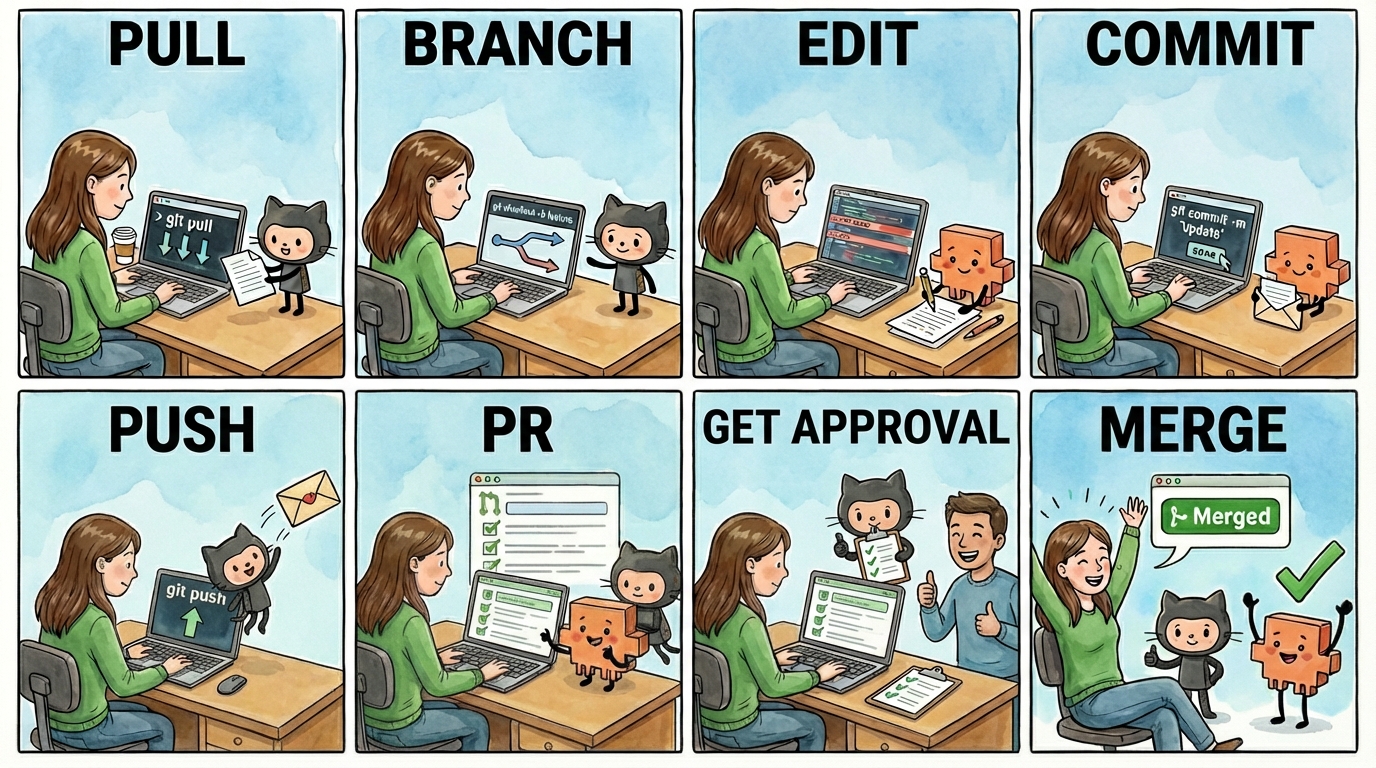
Code lives in folders on your computer. GitHub is version control for those folders and files — a website that tracks every change you make, lets you roll back to earlier versions, and makes the code shareable. Your agent will live on GitHub so you can save history and share it.
For a deep dive, read Hannah Stulberg's Tool School: GitHub 101.
A folder on GitHub that holds one project. Your agent gets its own repo. "My repo" = "my project's folder on GitHub."
Downloading the latest version of the code from GitHub to your computer. The first thing you do when you start working: pull so you have the most up-to-date files.
A parallel copy of your code you can experiment on without touching the main version. Make a branch when you're about to change something — if it doesn't work out, the main version is untouched.
A saved snapshot of your code at a moment in time, with a short note about what changed. "Let me commit this" = "let me save a checkpoint I can come back to later."
Uploading your local commits to GitHub so they're saved online and anyone else with access can see them. Think of it like hitting "save to cloud."
A proposal to merge your branch's changes into the main version. The PR is where someone reviews your work, asks questions, and gives approval before the changes get merged in.
Combining a branch's changes back into the main version. Once a PR is approved, you merge it — and the main branch now includes the new work.